Overview
Building a data warehouse – no matter which vendor – ultimately serves one purpose: provide your users with centralized, historized and standardized data upon which they can create insights and make decisions. Let’s look at how to use Snowflake and Power BI for reporting.
Explanation
So at the end of the tutorial it seems appropriate we explain how we can connect Power BI Desktop to our Snowflake database.
Using the Snowflake Connector
Luckily Power BI provides us with a native connector for Snowflake. In the Get Data screen, you can find it listed under the database section.
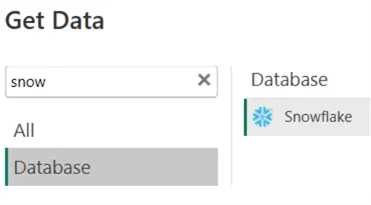
Once you select Connect in the Get Data screen, you need to fill in the server information and configure a warehouse.

You can find the server information in the accounts tab of the Admin section.
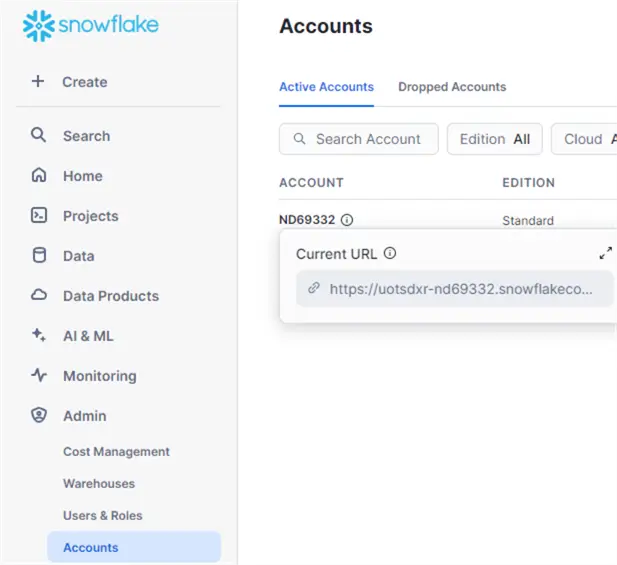
It might be a good idea to create a new warehouse specifically for Power BI. This can give you good insights into the costs associated with reporting on top of your Snowflake database. The queries from Power BI will also then not intervene with other queries that are using other warehouses.
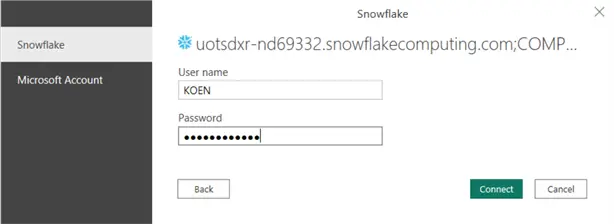
In the next window, you need to configure the credentials to connect to your Snowflake account:
Load Tables
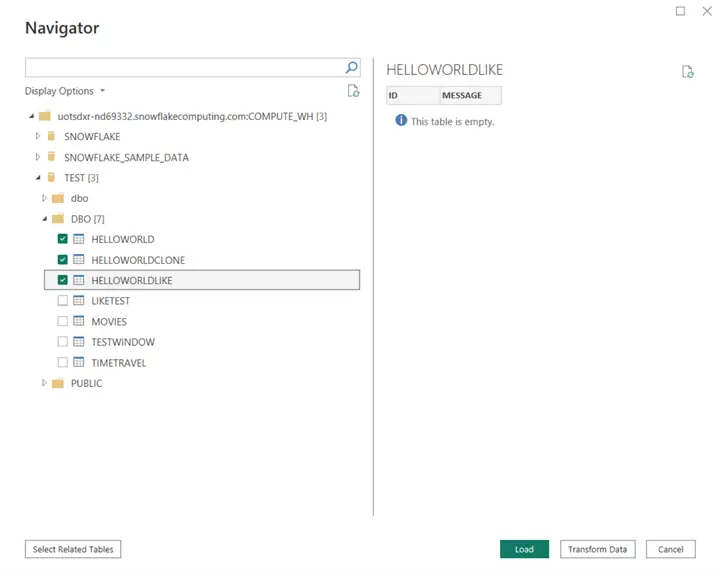
Once you’re connected, you will be taken to the navigation screen where you can select which tables you want to load:
As with most databases, you then need to choose between Import mode or DirectQuery mode.
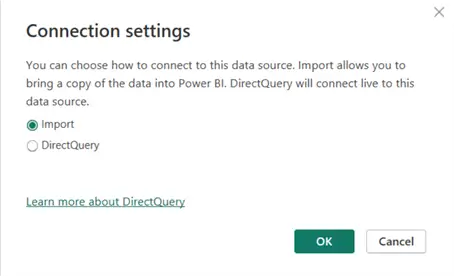
- Import mode might seem a bit weird at first, since you have such a powerful, scalable database at your disposal, but if the data fits into the Power BI model (1GB compressed when using Power BI Pro) it makes sense. If the data is imported, you have no extra costs. Remember, running queries on Snowflake consumes compute, and compute equals costs. If Power BI handles all the end user queries, you might save some money.
- For larger datasets, DirectQuery is a good option. Snowflake will handle the heavy lifting. You might want to test out if you want to go for a very large warehouse which can returns results fast (but costs more money) or a auto-scaling cluster of multiple warehouses which load balance the requests of multiple users.
Create Visualization
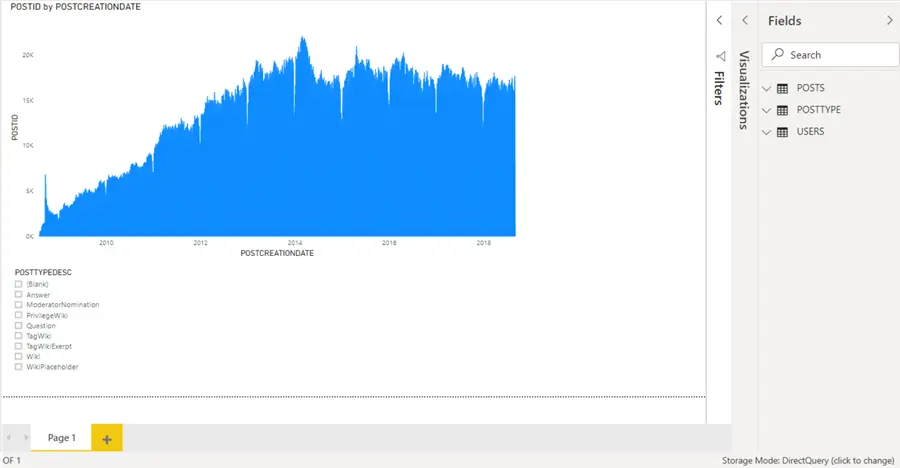
Once the model is loaded, you can create your visualization like with any other data source. If the warehouse is suspended, it will auto-resume (if configured) and return results to Power BI.
Additional Information
- The documentation of the Snowflake connector in Power BI.
- In the list of data sources, you can see Snowflake is still listed under databases, and not under Online Services. Previously this meant you had to use a gateway to connect to the data in Snowflake from the Power BI Service. This restriction has been lifted. You can find more information on how to connect to Snowflake from the Power BI service in the documentation, as well as an explanation on how to use Microsoft Entra ID as a single sign-on.

Koen Verbeeck is a seasoned business intelligence consultant with over a decade of experience with the Microsoft Data Platform. He holds several certifications, including Azure Data Engineer. He’s a prolific writer, with over 375 articles on technologies such as Microsoft Fabric, SSIS, ADF, SSAS, SSRS, MDS, Power BI, Snowflake and Azure services. He has spoken at various events such as PASS, SQLBits, dataMinds Connect and many others. He frequently delivers educational webinars on MSSQLTips.com. For his efforts, Koen has been awarded the Microsoft MVP data platform award for many years.
- MSSQLTips Awards:
- Leadership Award (200+ Tips) – 2021
- Author of the Year – 2014/2020/2022
- Author Contender – 2024/2025